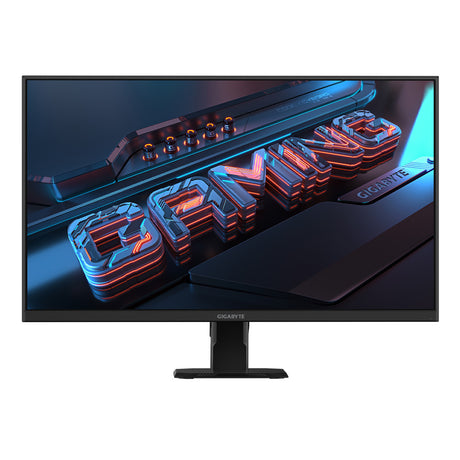
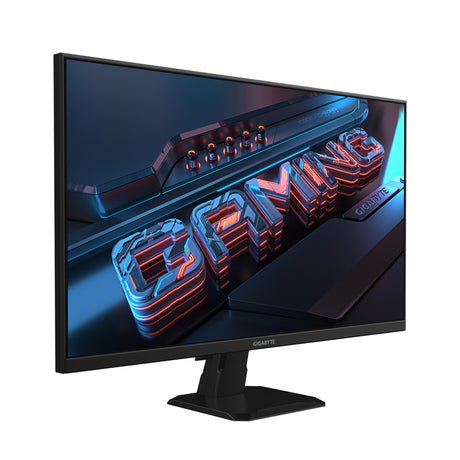
QD-OLED monitors deliver the best image quality you can buy today. Deep blacks, instant response, and stunning HDR make them unbeatable for gaming and creative work. But if you’ve read forums, you’ve probably seen talk about “flicker” when VRR (Variable Refresh Rate) is enabled. Here’s what’s really happening, and how to fix it easily.
What VRR Is Supposed to Do
VRR, FreeSync, and G-SYNC Compatible all fix the same issue: your GPU renders frames at variable speeds, while your monitor refreshes at a constant rate. When they drift out of sync, you get tearing or stutter. VRR keeps refresh in step with frame output for smooth gameplay. On IPS and VA panels this happens quietly, but OLED reacts differently.
Why QD-OLED Panels Behave Differently
QD-OLED pixels are self-emissive, each one creates its own light. That’s why OLED looks so good, but it also means every timing change affects brightness directly. When VRR adjusts refresh timing to match GPU output, those changes can appear as minor brightness flicker, especially in darker menus or uneven frame pacing.
- Most visible in dark menus or loading screens
- More noticeable at lower or fluctuating frame rates
- Almost invisible above 100 FPS with stable pacing
This isn’t a defect or burn-in risk, it’s a side effect of OLED’s precision.
Why It’s Considered Normal
QD-OLED flicker is a known, documented behaviour across brands, Gigabyte, Alienware, ASUS, Samsung, and it behaves the same even if replaced. It’s part of OLED’s variable timing design, not a fault.
When You’re Likely to See It
Flicker usually appears when frame rates swing heavily (e.g. 40–120 FPS), a game’s pacing is inconsistent, or VRR is enabled on the desktop. If your frame rate is locked at 120 Hz or higher, you’ll rarely notice it at all.
Simple Fixes That Work
- Set your monitor to 120 Hz: Nearly all games run flawlessly with VRR on at this refresh rate.
- Disable G-SYNC in NVIDIA Control Panel for specific games: Some titles behave better this way.
- Disable G-SYNC completely if issues persist: Flicker usually disappears instantly.
- Update GPU drivers and monitor firmware: Keeps timing stable and reduces flicker.
- Use a certified DisplayPort 1.4 cable: Prevents signal drop or frame jitter.
- Enable VRR per game: Avoid global desktop VRR, which triggers brightness shifts.
- Cap your frame rate: Stable pacing looks better than chasing max FPS.
- Stay above 60 FPS: Low-FPS gaming is where OLED flicker is most visible.
Is OLED Still Worth It?
Absolutely. OLED delivers unmatched colour, contrast, and clarity. The small trade-off is sensitivity to frame timing, but that’s exactly what makes it so responsive. Once tuned, it’s the best-looking display tech for gaming in NZ, period.
Our Take at Computer Lounge
At Computer Lounge, we stock QD-OLED monitors because they’re the benchmark for image quality and speed. We’re transparent about how they behave, and our team can help you configure yours for flawless performance. OLED is unbeatable.
Final Thoughts
QD-OLED VRR flicker isn’t a flaw, it’s the side effect of technology that delivers perfection in motion. Once you understand it, you can eliminate it with simple setup tweaks and enjoy OLED’s stunning visuals without compromise.
Contact the Computer Lounge team for personalised help with setup or to choose the best OLED gaming monitor for your build.